
How do I apply a warm filter online?
Upload one JPG, PNG or WebP up to 20 MB. Choose Natural warmth for a blue cast, Soft film for creamier highlights, or Golden hour for a stronger amber glow. Select a quality, sign in and apply the filter. Compare the result with your original using the divider, then download the PNG. Each edit uses one photo and produces one image.
Which warm filter looks best on my photo?
Match the filter to the light in the original. In a cool café photo, Natural warmth can take the gray out of a face while a white cup still looks white. For a window portrait, choose Soft film if you want a warm film filter that softens pale highlights and adds fine grain. Choose Golden hour for an already backlit subject when you want the bright edges to glow.


Natural warmth
The café window leaves both faces cool. After warming, the wood picks up honey tones while the white cup stays pale.


Soft film
Look at the sleeve by the window. The soft warm filter gives the pale knit a cream tint while the weave stays visible.
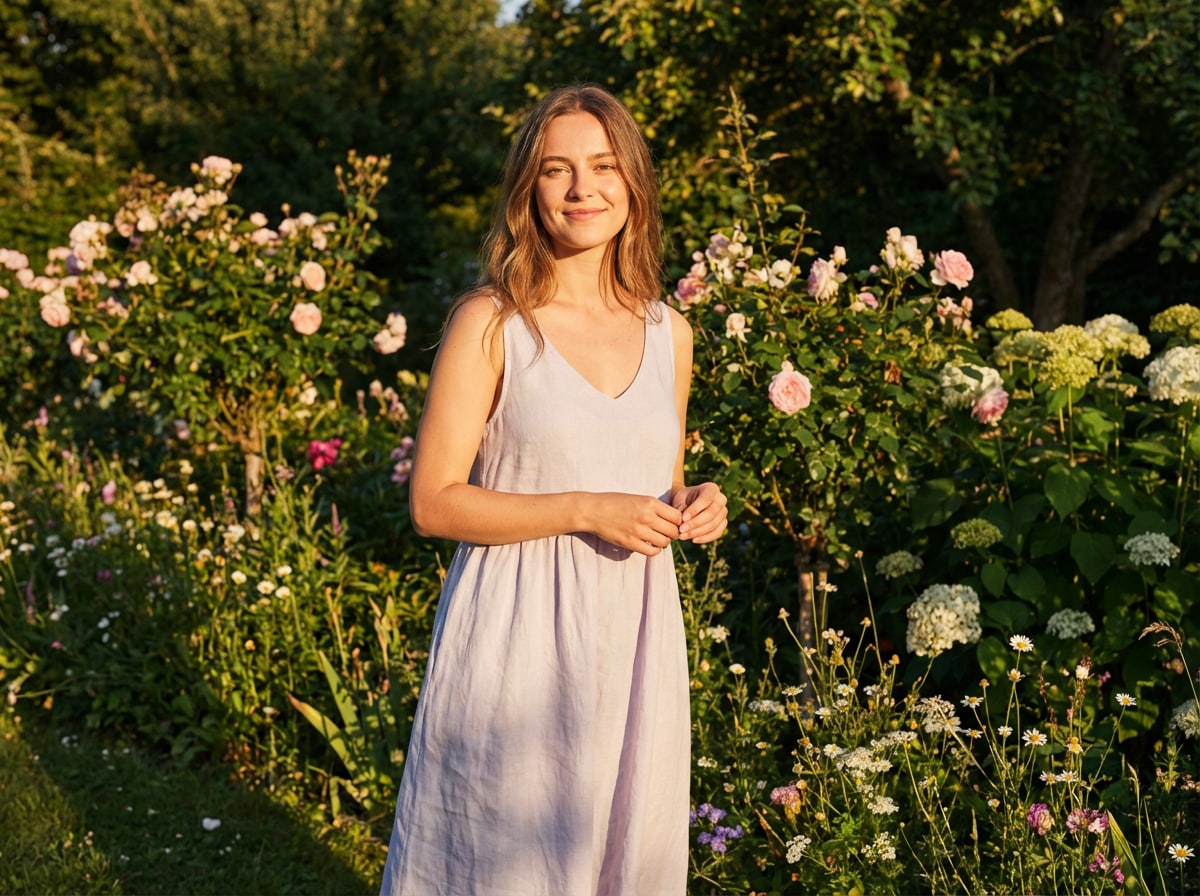
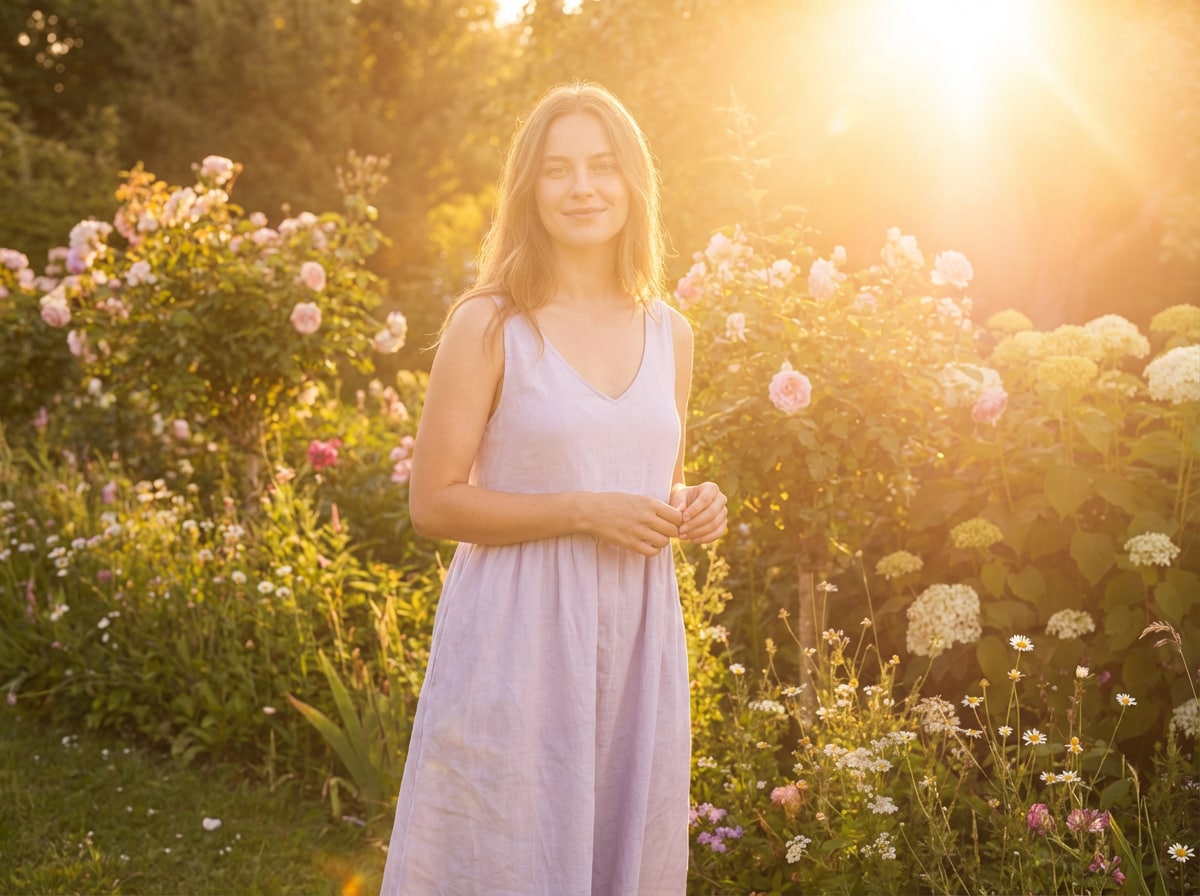
Golden hour
Backlight spreads from the top right across the flowers. The dress loses some contrast where the amber haze is strongest.
How do I keep a warm filter from turning skin orange?
Use Natural warmth on a cool portrait and compare a cheek in open shade with something neutral, such as a gray collar. The cheek can regain color while the collar stays gray. If both turn amber, the edit has gone too far. In a manual editor, reduce warmth first, then ease orange saturation if the cheeks still look too red.
Natural warmth prompt
Color-grade the supplied photograph and return one still image in its original framing. Neutralize blue or green spill on the subject. Warm the lit midtones gently. Let a white cup, shirt or wall stay close to white, with a little of the original light in its shadows. Keep each person recognizable, including their features, expression, skin undertone and texture. Preserve the shapes, lettering, clothing and objects in the scene. Keep reds distinct from orange and greens distinct from yellow. Leave the composition intact and add no text, border or watermark.
How do Vivid Warm and Dramatic Warm differ on iPhone?
Vivid Warm makes bright colors stand out, so it works well on colorful buildings or fruit. Dramatic Warm gives the shadows more weight and the highlights a more muted look. On an iPhone photo that offers Filters, open Edit, choose either preview and move the intensity slider. For a smaller change to color alone, open Adjust and move Warmth a little.
| Filter | What to watch |
|---|---|
| Vivid Warm | Watch bright red or yellow objects for oversaturation. |
| Dramatic Warm | Check whether you can still see texture in dark hair and clothing. |
When does a warm filter work poorly?
Mixed light is difficult to warm evenly. A window may cast blue on one cheek while an indoor bulb already makes the other cheek yellow. Blown highlights also have little texture left to recover. Generative edits can change a freckle, lettering or a fabric color. For an exact product swatch or a portrait that must preserve every facial detail, use a masked white-balance adjustment on the original.
Change the light direction with AI RelightWhat does a warm filter edit cost?
One Fast edit costs 2 credits. Eligible new accounts receive 1 free welcome credit, and the $5 trial pack includes 10 credits. The higher tiers use more credits and require active paid access. All four save one PNG with no added visible watermark. The download is included, and generating another version uses the credits shown for the selected quality.
| Quality | Output | Credits | Account access |
|---|---|---|---|
| Fast | 1K | 2 | Signed in, with credits |
| HD | 2K | 5 | Active subscription or unexpired paid credits |
| Ultra HD | 4K | 8 | Active subscription or unexpired paid credits |
| Studio | 2K | 17 | Active subscription or unexpired paid credits |
Which online photo editor should I use for a warm filter?
Choose ConsistentCharacterAI if you want a guided photo edit and a before-and-after preview. Adobe Express offers a Golden hour effect with an intensity slider for quick adjustments. Photopea gives you adjustment layers, so you can warm a background separately from a face and keep the edit editable in a PSD. The table compares the photo tools and their published terms.
| Tool | Price | Free allowance | Visible watermark | Output |
|---|---|---|---|---|
| ConsistentCharacterAI | $5 for 10 credits. Edits from 2 credits. | 1 welcome credit if eligible | None added | One PNG, 1K–4K |
| Adobe Express | Free or US$9.99/month Premium | Free photo filters, including Golden hour | Not published | Filtered image download |
| Photopea | Free editor | Free manual adjustments | Not published | PNG, JPG or layered PSD |