AI image to realistic photo
Make AI Photo Realistic
Make AI photo realistic in one click. Upload an AI image with waxy skin, a golden glow or candy-bright colors, and get the same picture back looking like it came out of a real camera.
Make AI photo realistic without starting over: the tool keeps the subject, face, pose and composition, and replaces the airbrushed finish with skin pores, fabric and material texture, ordinary light and colors a camera would actually record. Pick a realism style (phone snapshot, natural daylight, DSLR or 35mm film) and how strong the change should be. It works on images from ChatGPT, Gemini, Midjourney, Stable Diffusion and other generators.
Example result
Natural daylightSame subject and layout
Real texture and light
Four realism styles


Drag the slider to compare. Example made with ChatGPT's image model from a fictional AI image; your result will differ.
Make AI Photo Realistic: Before and After
Each pair below is one AI image and the same image after a realism pass. Look at the skin, the highlights and the colors: that is where the AI look lives, and it is where the tool works, so you make AI images realistic without moving anything in the frame. This is what it looks like when you make AI photo realistic here.
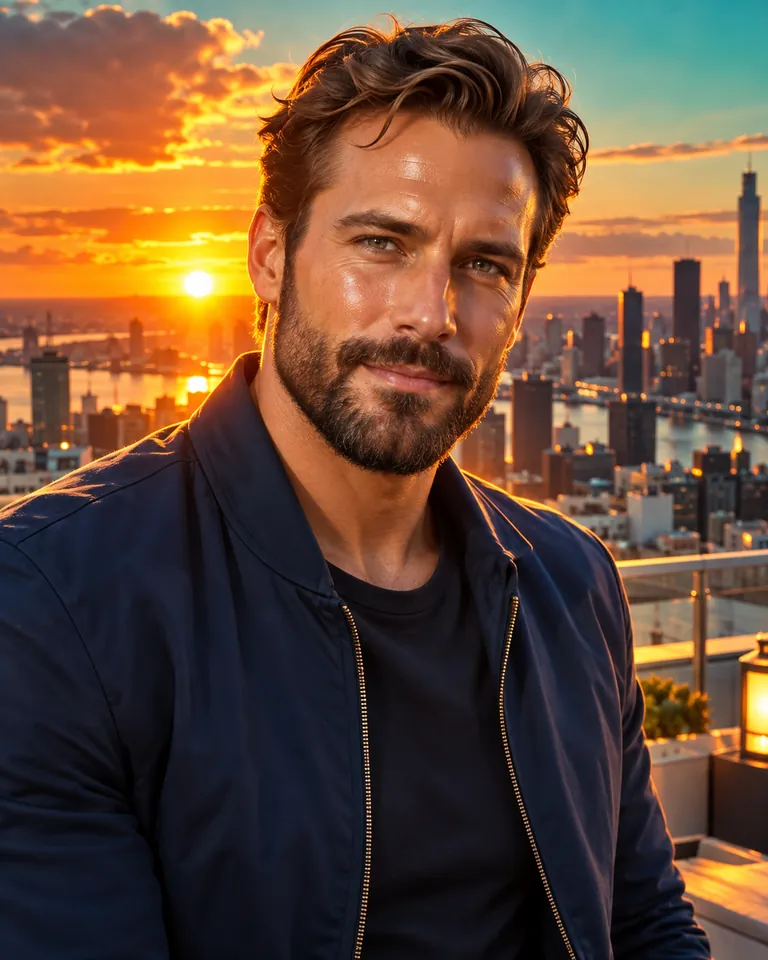
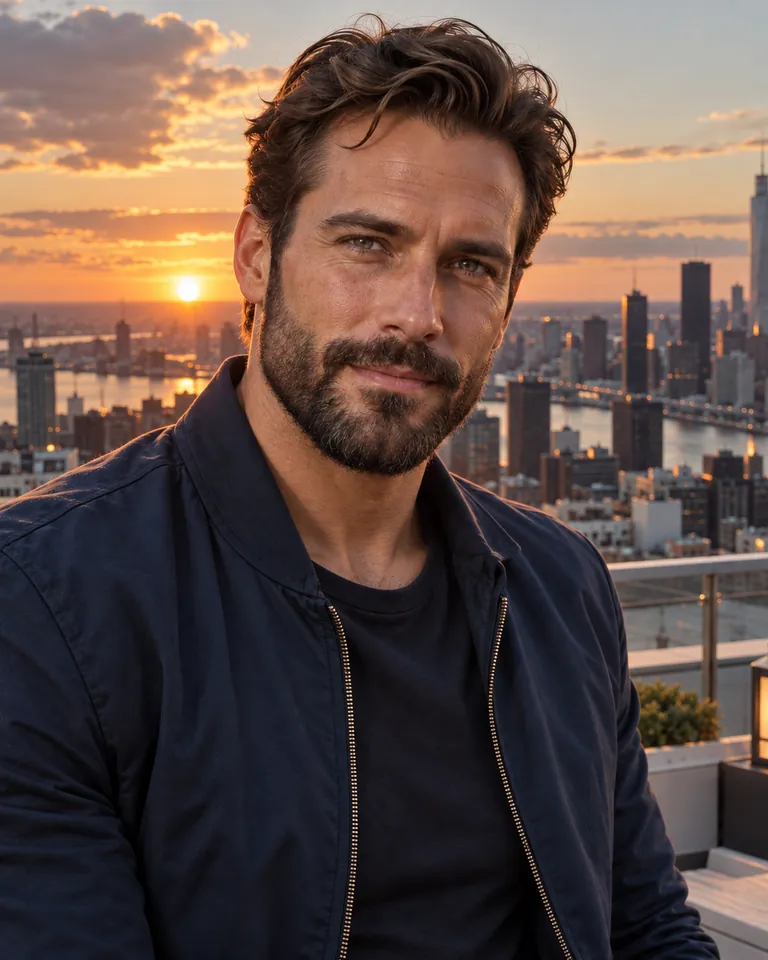
Portrait: oily skin and sunset bloom
The rooftop portrait had shiny, plastic skin and a teal-and-orange glow around the outline. With the Natural daylight style at Balanced strength the shine turns into matte skin with pores and beard detail, the bloom is gone and the sunset keeps its color without washing over him. Same face, jacket and skyline: the quickest way to make AI photos look more realistic for a profile or a post.
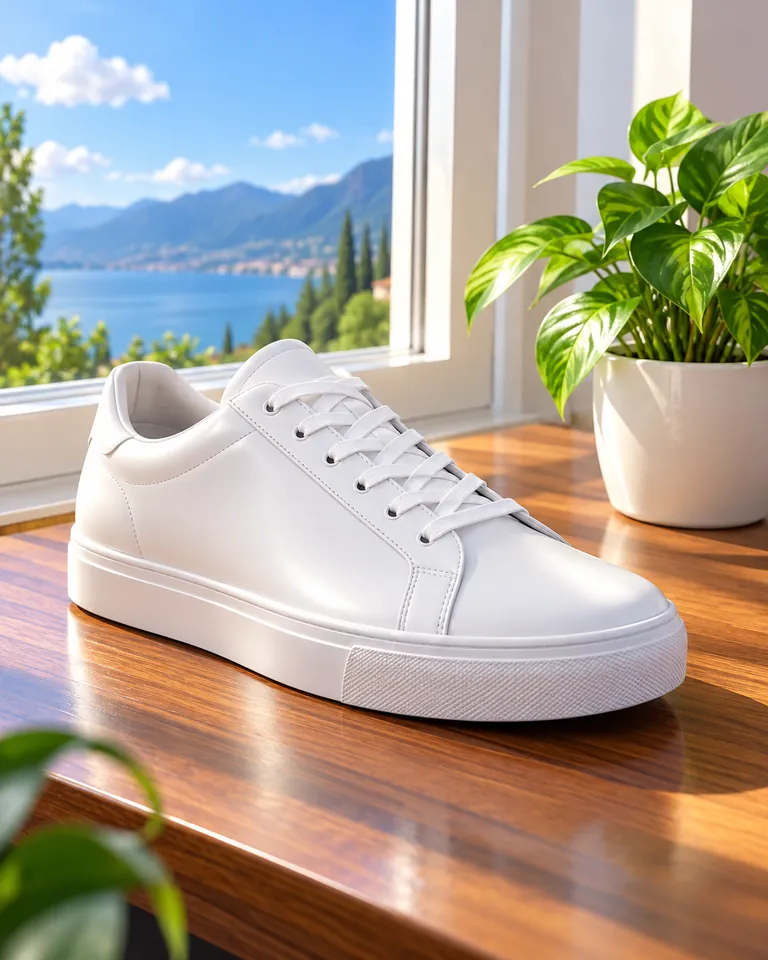
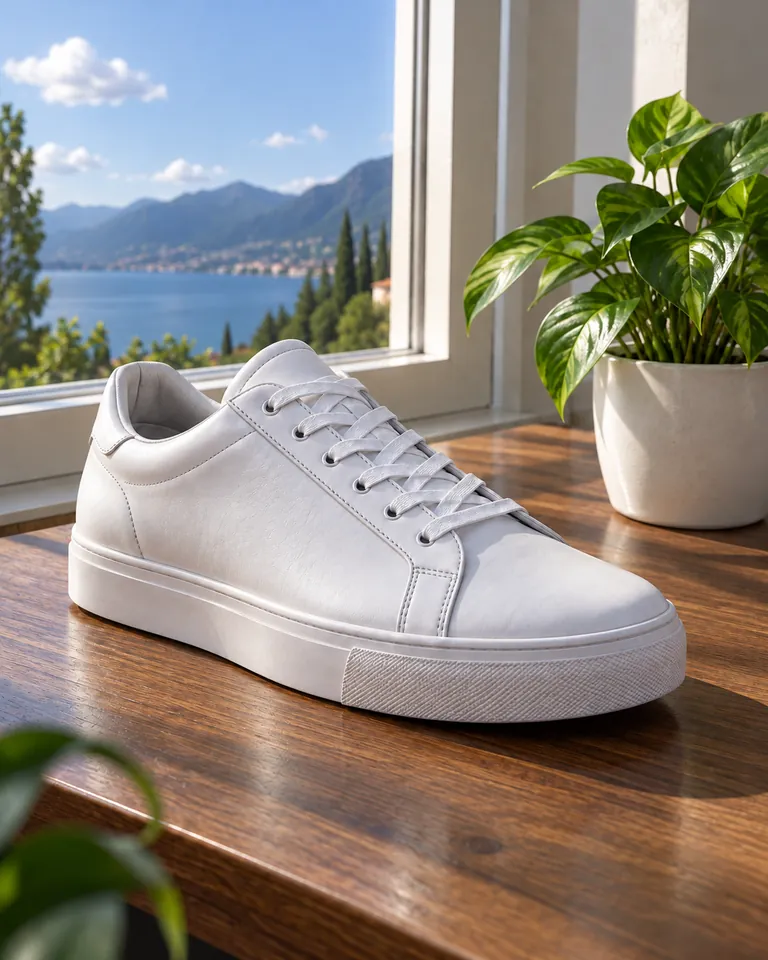
Product shot: CGI-clean sneaker
AI product renders give themselves away with leather that has no texture and highlights that glow. The DSLR style adds fine leather grain and soft creases, turns the glowing highlights into ordinary window light and calms the colors of the table and plant, so the shoe reads as an object someone photographed. To make AI photo realistic for a store listing or mockup, this is the style to start with.
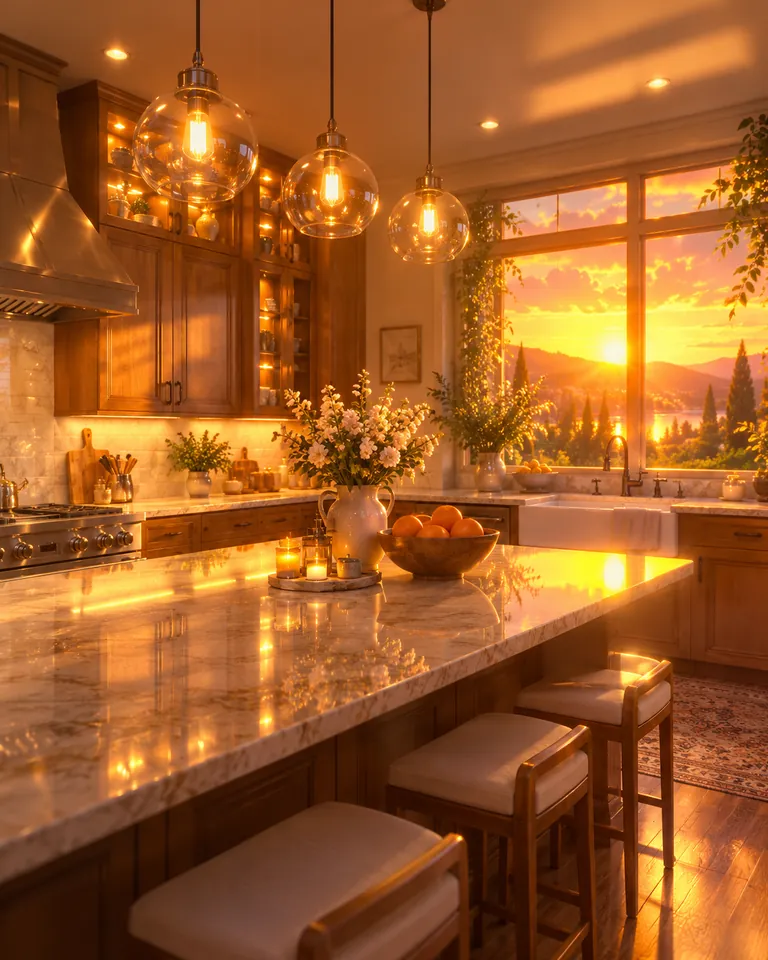
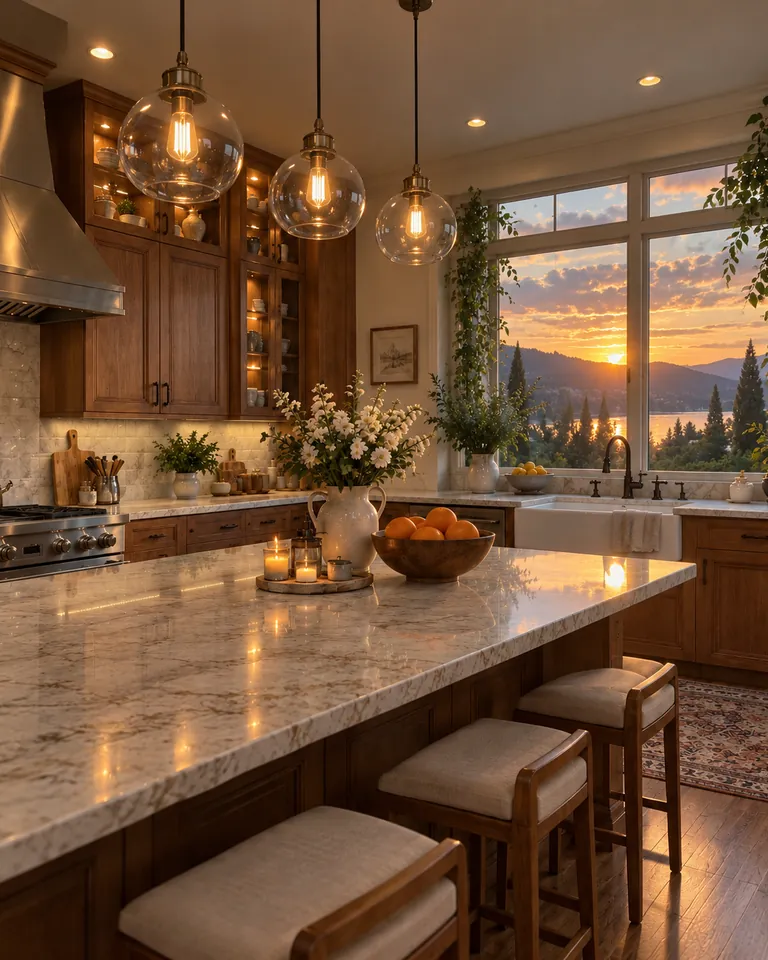
Interior: every lamp glowing
In the AI kitchen everything glowed orange. The Phone snapshot style keeps the sunset inside the window, brings the room's white balance back toward neutral and tones down the reflections, so the marble, cabinets and stools show their surfaces again, which is what a quick phone photo of a real kitchen looks like.
Examples were made with ChatGPT's image model from fictional AI-styled images, using the same instructions this tool sends when you make AI photo realistic. Your own result will differ in detail.
Choose the Kind of Real: Four Realism Styles
Most AI image realism enhancer tools give you one look. A real photo can mean very different things, so when you make AI photo realistic here, you choose which kind. All four images below started from the same AI café portrait at Balanced strength.
Natural daylight
Soft real-world shadows, neutral white balance and slightly muted colors. The safest choice when you only want the AI look gone.
Best for: Portraits, lifestyle shots, travel and social posts
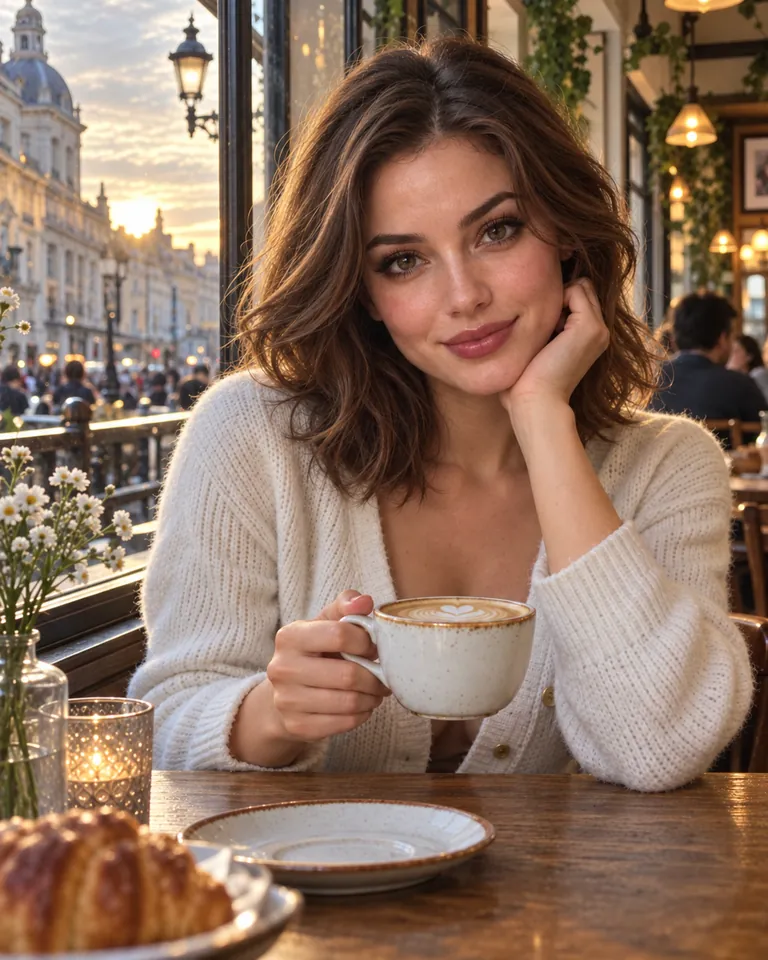
Phone snapshot
Plain everyday light, phone-camera sharpness and a little noise in the shadows. Use it when the goal is to make an image look less AI and more like a phone selfie.
Best for: Selfies, casual scenes, rooms and food
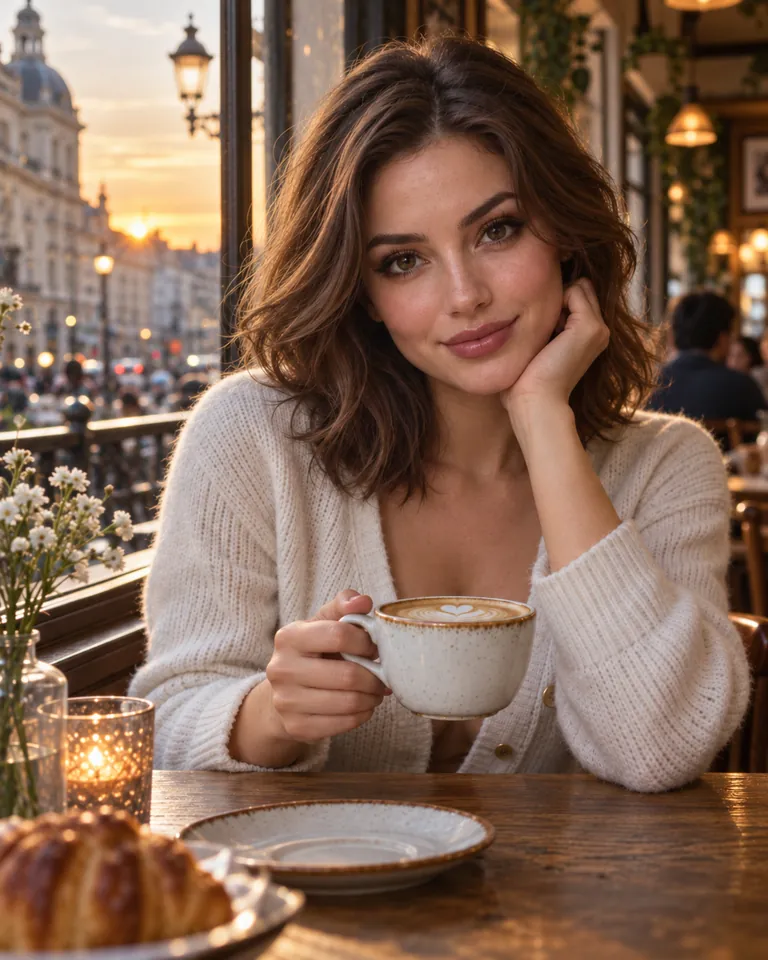
DSLR
A prime-lens look with real depth of field, crisp fine detail and clean light, without a glossy sheen.
Best for: Headshots, product photos and portfolio images
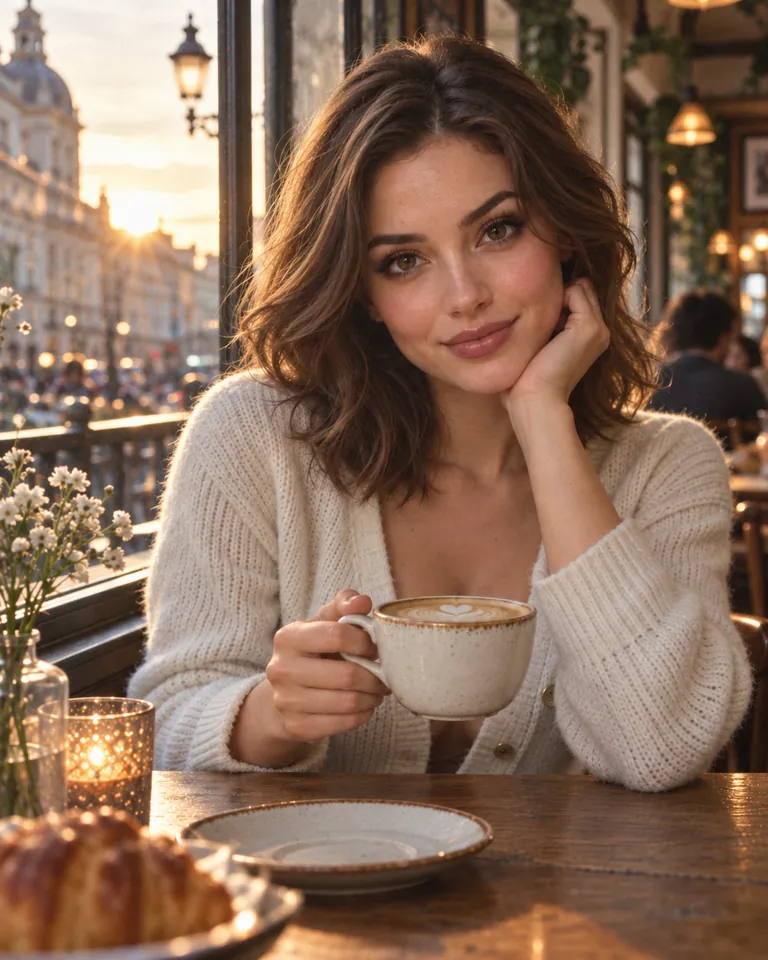
35mm film
Fine organic grain, gentle film color and a soft glow only around real light sources. Grain is one of the quickest ways to hide the too-clean AI finish.
Best for: Moody portraits, street scenes and editorial looks
Strength
Subtle
Tones down glow and gloss and adds fine texture. Pick it when the image is already close to photographic.
Balanced
Clearly removes the AI look while keeping the mood. The default, and right for most images.
Strong
Plainer, harsher light, clearly muted colors and visible imperfections. Use it when Balanced still looks too polished.
How to Make an AI Photo Realistic in 3 Steps
To make AI photo realistic you only need the image itself: no layers, masks or editing skills.
- 1
Upload the AI image
Drop a JPG, PNG or WebP up to 20 MB from any generator. Sign in first; the image is saved to your account so you can rerun it with other settings.
- 2
Pick a style and strength
Choose Natural daylight, Phone snapshot, DSLR or 35mm film, then Subtle, Balanced or Strong. Pick Fast, HD, Ultra HD or Studio, from 1 to 17 credits.
- 3
Compare and download
Drag the slider to check the face, hands and any text against your original, then download the PNG. If it still looks too polished, run it again with Strong or a different style.
Why AI Photos Look Fake, and How to Make Images Look Less AI
People spot an AI image in a second, usually without knowing why. These are the tells this tool targets when you make AI photo realistic:
Plastic, airbrushed skin
Generators smooth away pores, fine hairs and small blemishes, so faces look like wax or porcelain. The tool puts texture back without changing features.
Glow and bloom
A golden halo around hair, lamps and edges is one of the strongest AI signals. Real light only blooms around actual light sources.
Oversaturated, warm color
Many images come out orange or teal-and-orange with candy-bright colors. A camera records calmer, more neutral color, so the tool mutes it.
Flat, perfect light
Everything is evenly lit with no hard shadows. The realism pass gives light a direction and lets shadows fall off naturally.
Materials with no wear
Leather without creases, wood without grain, metal without scratches. Texture on objects matters as much as skin.
No grain at all
Real sensors and film always leave some noise. A clean, grainless image reads as rendered; the Phone and Film styles add it back.
Make AI Generated Images Realistic From Any Generator
Each image model has its own habits. These are the looks people most often complain about, and the setting that usually works best when you make AI photo realistic from that source. Treat them as starting points, not rules.
| Generator | Common AI look | Try first |
|---|---|---|
| ChatGPT images | A warm yellow-amber cast, flat even light and very smooth skin. | Natural daylight, Balanced. Use Strong if the yellow tint stays. |
| Gemini / Nano Banana | Often close to photographic already; skin and hair can still be slightly too clean. | Subtle with Natural daylight or DSLR. |
| Midjourney | Polished, cinematic and almost too perfect: dramatic light and glossy faces. | Phone snapshot or 35mm film, Balanced. |
| Stable Diffusion / Flux | Waxy skin, especially with fast or few-step models and high guidance settings. | DSLR or Natural daylight, Balanced to Strong. |
AI Image to Realistic Image Converter vs Other Fixes
There are four common ways to make AI photo realistic. Whether you call it an AI image to real image converter, an AI to real image converter or an AI photo to real photo converter, the job is to convert AI image to real image without changing what is in it. An AI image to realistic image converter like this one is the only option that keeps your exact picture and needs no editing skill.
| This converter | Regenerate with a realism prompt | Edit by hand | Upscaler | |
|---|---|---|---|---|
| Keeps your image | Yes: same subject, pose and layout | No, you get a new image | Yes | Yes |
| Removes the AI look | Yes: texture, light and color | Sometimes, depending on the model | Yes, with grain, color grading and retouching | No, it mostly adds resolution and sharpness |
| Effort | Upload and one click | Rewrite prompts and retry | Time in Photoshop or Lightroom | One click |
| Skill needed | None | Prompt writing | Photo editing | None |
Prompt Tips to Make AI Images Look Realistic From the Start
If you generate the image yourself, a better prompt gets you closer before you need to make AI photo realistic afterwards. These tips come up again and again in photography and AI art communities:
Describe a camera, not a style
"Shot on a phone, ordinary indoor light" or "50mm lens, f/2.8" works better than "ultra realistic, 8K, masterpiece", which tends to push images toward the polished look.
Ask for imperfections
Mention visible skin pores, flyaway hairs, creased fabric, a slightly messy background. Real photos are never perfect.
Name the light
Overcast daylight, a window on the left, harsh noon sun, fluorescent office light. Specific light avoids the default golden glow.
Keep colors plain
Add "natural, slightly muted colors, neutral white balance" so the model does not saturate everything.
Fix what is left afterwards
Even good prompts leave some gloss. Run the image through the Make AI Photo Realistic tool above, or add fine grain and lower the contrast by hand.
Example prompt
Candid phone photo of a woman reading in a small café, overcast daylight from the window, visible skin pores and flyaway hairs, slightly cluttered table, natural muted colors, neutral white balance, faint noise in the shadows.
What the Make AI Photo Realistic Tool Won't Do
- To make AI photo realistic, it redraws the image with AI. Faces, hands, small objects and text usually stay the same, but fine details can shift, so compare the result with your original before you use it.
- It improves texture, light and color. It does not reliably fix structural mistakes such as extra fingers, warped ears or garbled lettering; fix those first, then make the image realistic.
- It does not hide that an image is AI. The result is still AI-generated and an AI detector may still flag it. Do not use it to pass off an image as real evidence, news or a genuine record.
- It does not create images from text. Bring an image you already have.
- Cartoons, anime and paintings can be turned photographic, but they are reinterpreted more heavily, so likeness to the original is lower than with AI photos.
- One image per run. Signing in and credits are required: Fast, HD, Ultra HD and Studio cost 1 to 17 credits, HD and above are for subscribers, and credits are refunded if the generation fails.
Make AI Photo Realistic FAQ
How do I make an AI photo look like a real picture?
Upload the image to the Make AI Photo Realistic tool at the top of this page, keep the Natural daylight style and Balanced strength, and click Make it realistic. The tool removes the glossy finish, glow and oversaturated color and adds real texture and light while keeping the same subject and layout. To make AI photo more realistic still, rerun it at Strong or with the Phone snapshot style.
Why do AI-generated photos look fake?
Usually because they are too perfect: airbrushed skin without pores, even light without real shadows, glowing edges, saturated warm color and no sensor grain. Our eyes notice the missing imperfections before anything else.
How do I correct the AI glow in a photo?
The glow is a halo of light around hair, lamps and edges that real cameras rarely produce. All four styles remove it; Balanced or Strong gets rid of most of it. By hand you would lower the highlights and clarity glow, reduce saturation and add a little grain.
How do I make a ChatGPT image look like an actual photo?
ChatGPT images often have a warm yellow tint and very smooth skin. Upload it to Make AI Photo Realistic and use Natural daylight at Balanced; if the yellow cast remains, rerun it at Strong. For future images, ask ChatGPT for neutral white balance, overcast light and visible skin texture.
Will the result pass an AI detector?
No, and that is not what this tool is for. The output is generated by an AI image model, so it is still an AI image. It changes how the picture looks to people, not where it came from.
Is an AI image to realistic image converter the same as an upscaler?
No. An upscaler adds pixels and sharpness to the image you have, including its plastic finish. A realism converter changes the texture, light and color so the picture stops looking rendered. If you need a bigger file afterwards, run the result through the Image Upscale tool.
Can I make Midjourney portraits look like real headshots?
Yes. To make AI photo realistic as a headshot, use the DSLR style for a clean headshot look or Natural daylight for a casual one, then check the eyes, teeth and hairline in the comparison slider. For a plain studio backdrop, run the result through the Headshot Background Changer.
Does it work on product shots, interiors and landscapes?
Yes, you can make AI photo realistic for any subject. For products it adds creases, grain and matte finishes; for rooms it evens out the light and adds wood, fabric and stone texture; for landscapes it calms the color and adds natural detail. Text on labels is kept, but read it before you publish.
Can I make an image realistic if it's a 3D render or a drawing?
Yes. You can make image more realistic even if it never came from an AI generator: 3D renders, game screenshots and digital paintings all work. The more stylized the source, the more the tool has to reinterpret, so cartoons and anime change more than renders that are already close to a photo.
Should I edit an AI image or regenerate it?
Edit it when you like the composition and only the finish looks wrong; regenerating gives you a different image. Regenerate when the pose, hands or layout are broken, because a realism pass will not fix structure.
Can I make AI photo realistic on my phone?
Yes. The page works in mobile browsers: upload the AI image from your camera roll, make AI photo realistic with the same styles, and download the PNG to your phone.
What files can I upload and how much does it cost?
JPG, PNG or WebP up to 20 MB, one image at a time. Fast costs 1 credit, HD 4, Ultra HD 6 and Studio 17, and HD and above are for subscribers. If generation fails, the credits are refunded. Results download as PNG and stay in your generation history.
More photo tools
Image Upscale
Enlarge your realistic photo 2× to 8× for print or large screens.
Headshot Background Changer
Put a realistic portrait on a studio, office or white backdrop.
Realistic Character AI
Create the same realistic person across new poses and scenes.
90s Photo Generator
Give a portrait a retro flash, yearbook or film look.
Make Your AI Photo Realistic Now
Make AI photo realistic in one upload: choose how real it should look, and compare the result side by side. Fast, HD, Ultra HD and Studio from 1 to 17 credits.
Make AI photo realistic