
Add Person to Photo uses a separate portrait to help you add a missing relative or friend to a group picture, asking AI to match light and scale and preserve the people already there. Browsing examples is free, and current signup credits do not cover an edit. A Fast PNG uses 7 credits ($3.50 at the eligible $5.00 pack rate), and higher tiers reach 3312 pixels on the longest edge with no added site watermark.
How to add a person to a photo
Upload the group photo first and a clear photo of the missing person second. Start with Auto placement when there is room in the original. Choose Left or Right to suggest a side, or describe a specific spot in Custom. Compare the generated image with the original before you download it.
1. Upload the original and the person
Put the scene you want to edit in the first slot. Put one photo of the person you want to add in the second. Each file can be a JPG, PNG, or WebP up to 10 MB.
2. Choose where the person goes
Let the model find room, suggest the left or right side, or write a placement instruction in Custom. You can also upload a guide image for placement.
3. Compare and download
Choose a shape and quality, sign in and confirm you have permission to use the photos. Generate one PNG, then compare faces, framing, and shadows with the original.
Before and after adding someone to a photo
These side-by-side illustrations show how adding one person changes a family picnic, an office lineup, and a photo from a hike. Start by comparing the placement of the new person. Then look at their height, where their feet or body meet the scene, and whether any faces in the original have shifted.
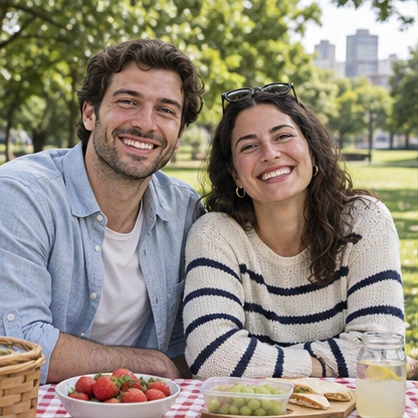
Original
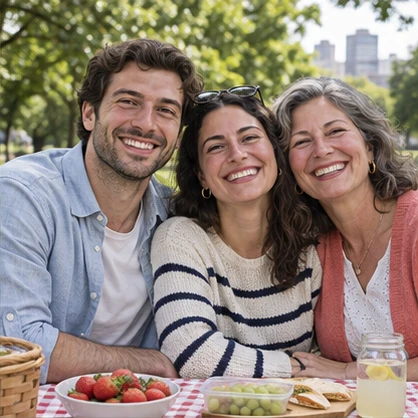
With one person added
Family picnic
A relative in a coral cardigan joins two people at the picnic table.

Original

With one person added
Office group
A colleague in a navy jacket stands at the viewer’s left near the table.
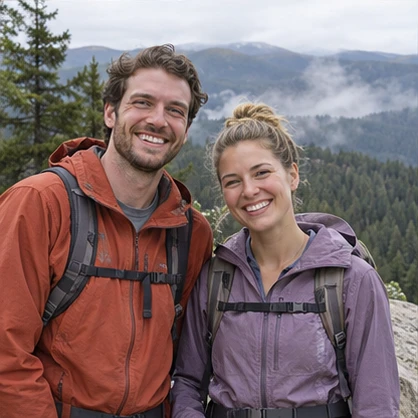
Original
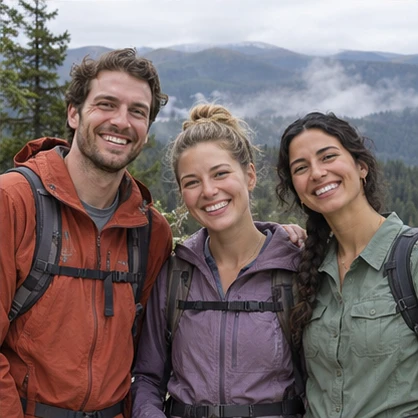
With one person added
Trail friends
A friend in a green hiking shirt joins the group on the viewer’s right.
How do you add a person to a family or group photo?
Add Person to Photo uses the original group picture and a separate photo of the person who missed it. A group picture with room at an edge or an empty seat gives the model a clear place to put them. If the group is standing, choose a reference that shows their body so the model has more information about height, clothing, and posture.
What prompt should I use to add a person to a group photo?
For a group photo edit, describe where to put the person, what pose fits, and which details should stay as they are. Use landmarks in the original, such as an empty chair or the person in a blue jacket. Say left or right from the viewer’s perspective. If the group fills the frame, try a version of the original with more room at the edges.
Add the person from the second photo on the viewer’s left, standing next to the person in the blue jacket. Match the camera height and light from the right. Keep the original group in the same poses.
Can I use Add Person to Photo for free?
A Fast edit in Add Person to Photo requires signing in and costs 7 credits. Eligible new accounts get 1 signup credit, toward the 7 needed for one Fast edit. You can browse the examples and controls without signing in. Eligible accounts can buy 10 credits for $5.00 once. A Fast edit uses $3.50 of that pack. A successful generation includes a PNG download. There is no separate export fee.
Consistent Character AI runs the tool in the first row. The terms come from the tools’ official pages. We are independent of the other providers. Free access can depend on the account or the type of edit.
| Tool | Free access | Paid edits | Download |
|---|---|---|---|
| Consistent Character AI | Examples are free. Fast uses 7 credits. | Eligible accounts can buy 10 credits for $5.00 once. A Fast edit uses $3.50 of that pack. | One PNG. The site adds no visible watermark. |
| Fotor | Free basic cutout and placement. | Per-image price unpublished on the tool page. | Image download. The page advertises watermark-free basic edits. |
| Vidney | Eligible new accounts can start with a free image. Availability varies by region. | $0.99 for one image or $1.99 for three, before tax. | Free-plan downloads have a small watermark. Paid downloads are watermark-free. |
Checked
Pricing and PNG download sizes
An edit costs 7 to 11 credits for one PNG. Each quality level costs the same in all three shapes. Eligible accounts can buy 10 credits for $5.00 once. A Fast edit uses $3.50 of that pack. HD, Ultra HD and Studio require an active subscription or eligible paid credits. The trial pack alone covers one edit at Fast, HD, or Ultra HD quality. Studio uses high quality at 2K and needs 11 credits. Ultra HD uses low quality at 4K. The standard 100-credit pack costs $14.90.
| Quality | 4:3 | 3:4 | 1:1 | Credits |
|---|---|---|---|---|
| Fast | 1024 × 768 | 768 × 1024 | 1024 × 1024 | 7 |
| HD | 2048 × 1536 | 1536 × 2048 | 2048 × 2048 | 8 |
| Ultra HD | 3312 × 2480 | 2480 × 3312 | 2880 × 2880 | 10 |
| Studio | 2048 × 1536 | 1536 × 2048 | 2048 × 2048 | 11 |
| Feature | Details |
|---|---|
| Signup allowance | Eligible new accounts get 1 signup credit, toward the 7 needed for one Fast edit. |
| One-time trial pack | The trial pack alone covers one edit at Fast, HD, or Ultra HD quality. Studio uses high quality at 2K and needs 11 credits. Ultra HD uses low quality at 4K. The standard 100-credit pack costs $14.90. Eligible accounts with 1 unused signup credit can combine them with the trial pack for one Studio edit. |
| PNG download | Included with a successful edit. The site adds no visible watermark. |
When a group photo edit is likely to change faces
AI can redraw parts of a photo as it adds a person. Check the faces of people who were already there, hand placement, and edges of objects the new person overlaps. Crowded groups, mixed lighting, and tight crops are harder. Choose a shape close to the original and save a copy of the original before printing or sharing.
Add Person to Photo FAQ
Can I add a person to a photo on an iPhone or Android phone?
Yes. Use the editor in your mobile browser and select a group photo and a separate portrait. Upload JPG, PNG or WebP. If your camera saved a HEIC file, export a JPG copy first.
Can I add two people to the same photo?
This tool takes one person reference and requests one addition per run. You can use a downloaded edit as the original for a second run. Compare against the first original after both edits because changes can accumulate.
Can I use an old scanned portrait or a headshot?
Yes, if the face is clear and the file meets the upload limits. A headshot leaves the pose and clothing up to the model. Use a waist-up or full-body photo for more control, or use a seated original if your reference shows mostly the head and shoulders.
What happens to the original and reference photos I upload?
The service sends the photos to its image provider to make the edit. It stores uploads and does not automatically delete them after the edit. Opening a result on the site requires your account. Anyone who obtains a direct storage link may be able to open that file.
You can use this editor for an existing group photo or a scene with room for someone to stand or sit. Keep the original photo, use images you have permission to edit, and tell viewers about edits that could change how they understand an event.